case study
TraceLot Transfers
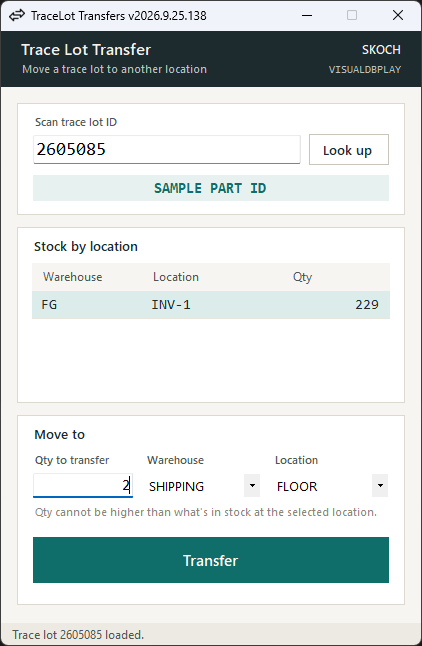
VISUAL tracks lot- and serial-controlled inventory down to the trace ID, but its standard screens aren't built for a quick floor question: where does this lot actually sit right now, and how much of it is there? Answering that means digging through more than one screen before you even get to moving anything.
The problem
A trace lot can have stock spread across more than one warehouse and location, and there's no single, fast view of all of it together. Someone who just needs to move a lot to a new spot has to piece its current locations and quantities together first, then work through a transfer screen that's built for entering full transaction detail rather than a quick move.
The approach
The tool collapses that into one screen. Scan or type a trace ID and it immediately queries VISUAL's own trace and inventory-transaction tables, showing every warehouse and location currently holding stock under that lot with quantities, side by side, at a glance. Pick a row, choose a destination warehouse and location, and it's ready to move.
Right before posting, the tool re-checks that the source quantity hasn't changed since it was first displayed. If someone else moved or consumed stock from that lot in the meantime, the transfer is stopped rather than posted against a number that's already stale.
The move itself goes through VISUAL's API Toolkit — the same COM-based business object layer VISUAL's own client uses internally — rather than writing directly to the underlying tables:
var txn = new InventoryTransaction(database);
txn.Prepare();

var r = txn.NewInputRow(1);
r["TRANSACTION_TYPE"]        = "TRANSFER";
r["PART_ID"]                 = PartID;
r["FROM_WAREHOUSE_ID"]       = FromWarehouse;
r["FROM_LOCATION_ID"]        = FromLocation;
r["TO_WAREHOUSE_ID"]         = toWarehouse;
r["TO_LOCATION_ID"]          = toLocation;
r["QTY"]                     = qty;
r["SITE_ID"]                 = SiteID;
r["ALLOW_NEGATIVE_BALANCE"]  = false;

var t = txn.NewTraceRow(1, TraceID);
t["QTY"] = qty;

txn.Save();
Posting it this way means every transfer is checked against VISUAL's own rules — valid locations, trace quantity, negative-balance handling — exactly as it would be if someone had entered it by hand.
The outcome
What used to mean checking multiple screens just to find a lot, then working through a full transfer form to move it, is now one pass: scan the lot, see exactly where it sits and how much is there, pick a destination, confirm. The quantity re-check closes the window where a stale read could turn into a bad transfer, and the move posts immediately, validated the same way a hand-entered VISUAL transaction would be.
← back to case studies