tool
Visual Toolbar Icons
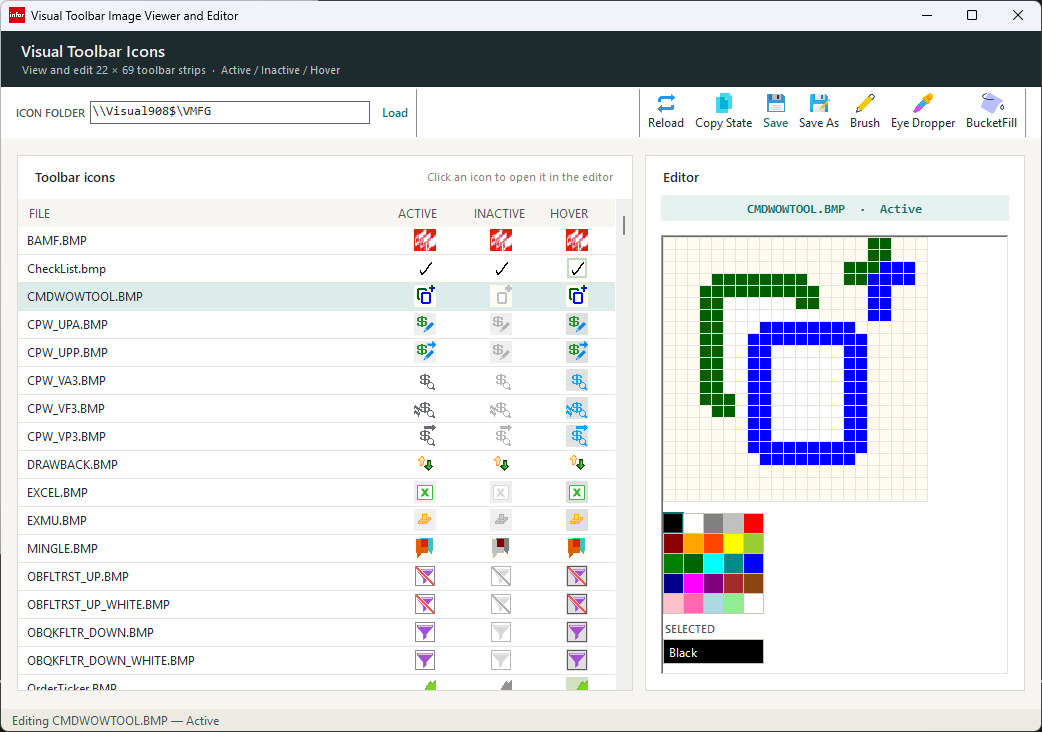
VISUAL's custom toolbar buttons don't take an ordinary icon — they want one 22×69 pixel bitmap, three 22×22 states stacked vertically (Active, Inactive, Hover), with magenta standing in for transparency. Almost nothing else uses that format, which means almost nothing else can open one and let you paint it correctly.
Credit where it's due
The format itself — the 22×69 three-state layout, magenta as the mask color, RGB(239,239,239) for the normal background and RGB(223,223,223) for hover — isn't something I worked out. It comes from Charles Hooper's VMIUG-TEC post, "How To: Create Visual Manufacturing Macro Data Entry Forms with PowerShell – Part 9: Visual Custom Toolbar Picture Creator." Hooper built his version as a PowerShell script embedded in a VISUAL macro, generated from a VB.NET prototype — an impressive piece of work given the constraints he was building inside of. This tool takes the same format and the same color conventions and reimplements the editor as a standalone WinForms app instead of a macro-hosted script.
Why it exists
Hooper's own writeup makes the case for why this needed a purpose-built tool in the first place: before he automated it, hand-building one of these images in a general paint program meant cropping, resizing, and manually recoloring specific pixels to magenta across three synchronized 22×22 strips — an hour or two of fiddly, error-prone work for a single button. A generic editor doesn't know about the strip layout, the mask color, or which background shade belongs to which state; you're just hoping you got all three sections to agree.
What it does
- Browses a folder for existing icons — scans for 22×69 BMPs and previews the Active, Inactive, and Hover slices side by side in a grid
- Edits at true pixel scale — click a thumbnail to load it into an editor that renders each source pixel as a 12×12 block, with a checkerboard behind anything transparent so the mask color reads clearly at a glance
- Brush, bucket fill, and eyedropper, plus a fixed palette that includes VISUAL's own mask and background colors, so you're never guessing at a hex value
- Copy State — take whatever you just painted and copy it into one of the other two states in the same file, for icons where Hover or Inactive should just be a tint of Active
- Always writes a real BMP — Save and Save As reconstruct the file as a genuine 24-bit bitmap with the mask color restored, not whatever GDI+'s default encoder happens to produce
Under the hood
The one part of this that isn't just "a paint program" is how it writes the file back. An earlier pass at this used new Bitmap(temp) to clone the loaded image and then called .Save(path) with no format specified — which sounds harmless, but a Bitmap copied that way reports RawFormat = MemoryBmp, and Save() with no explicit ImageFormat silently falls back to a PNG encoder. GDI+ and MS Paint don't care — they read the PNG-wearing-a-.bmp-extension file just fine. VISUAL's toolbar loader does care, and quietly fails to load it.
private static Color ToStripColor(Color c)
{
    return c.A < 128 ? MaskColor : Color.FromArgb(255, c.R, c.G, c.B);
}

private void WriteSliceToStrip(string filePath, int stripOffset)
{
    Bitmap strip;
    using (Bitmap temp = new Bitmap(filePath))
        strip = new Bitmap(temp);

    using (strip)
    using (Bitmap output = new Bitmap(strip.Width, strip.Height, PixelFormat.Format24bppRgb))
    {
        for (int y = 0; y < strip.Height; y++)
            for (int x = 0; x < strip.Width; x++)
            {
                bool inSlice = x < SliceSize && y >= stripOffset && y < stripOffset + SliceSize;
                Color c = inSlice ? _bitmap.GetPixel(x, y - stripOffset) : strip.GetPixel(x, y);
                output.SetPixel(x, y, ToStripColor(c));
            }
        output.Save(filePath, ImageFormat.Bmp);
    }
}
Building the output bitmap with an explicit PixelFormat.Format24bppRgb and saving with an explicit ImageFormat.Bmp is what closes the gap — every pixel outside the slice being edited is copied forward from the original file, every transparent pixel inside it is converted back to magenta, and the result is always a real BMP on disk, not a format VISUAL merely tolerates being shown by everything else.
Get it
All six source files: the main form and its grid, the pixel editor control, and the two small dialogs it uses for saving and copying between states.
← back to tools